For Founding edition buyers

Install in
60 seconds.

Until June 2, 2026, you install nok. via Chrome's Developer Mode — drop the .zip in and you're done. On launch day, Chrome auto-upgrades to the Web Store version. No reinstall, your license key stays.

This page only matters if you bought the Founding edition before June 2. After launch, install from the Chrome Web Store like any normal extension.

01 · The five steps
01

Unzip the file you downloaded

From the email receipt, click the download link and save nok-v1.0.0.zip somewhere you'll remember — Desktop is fine. Unzip it. You should end up with a folder called nok-v1.0.0 containing a manifest.json file and a few others. Keep that folder where it is; Chrome will load directly from it.
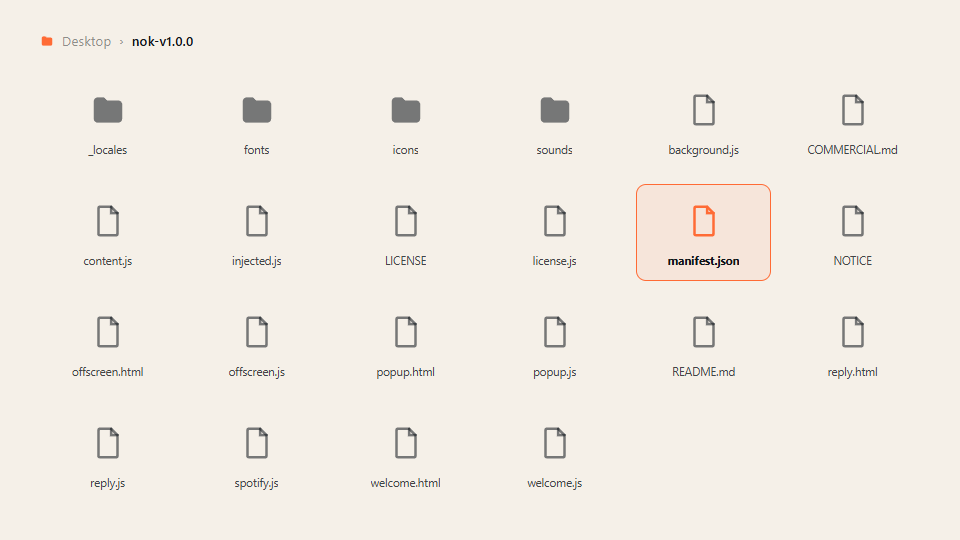
Unzipped nok-v1.0.0 folder showing manifest.json highlighted
02

Open Chrome's extensions page

In a new tab, paste chrome://extensions into the address bar and hit Enter. (Works in Edge / Brave / Arc too — same URL.) You'll see a page listing every extension you have installed.
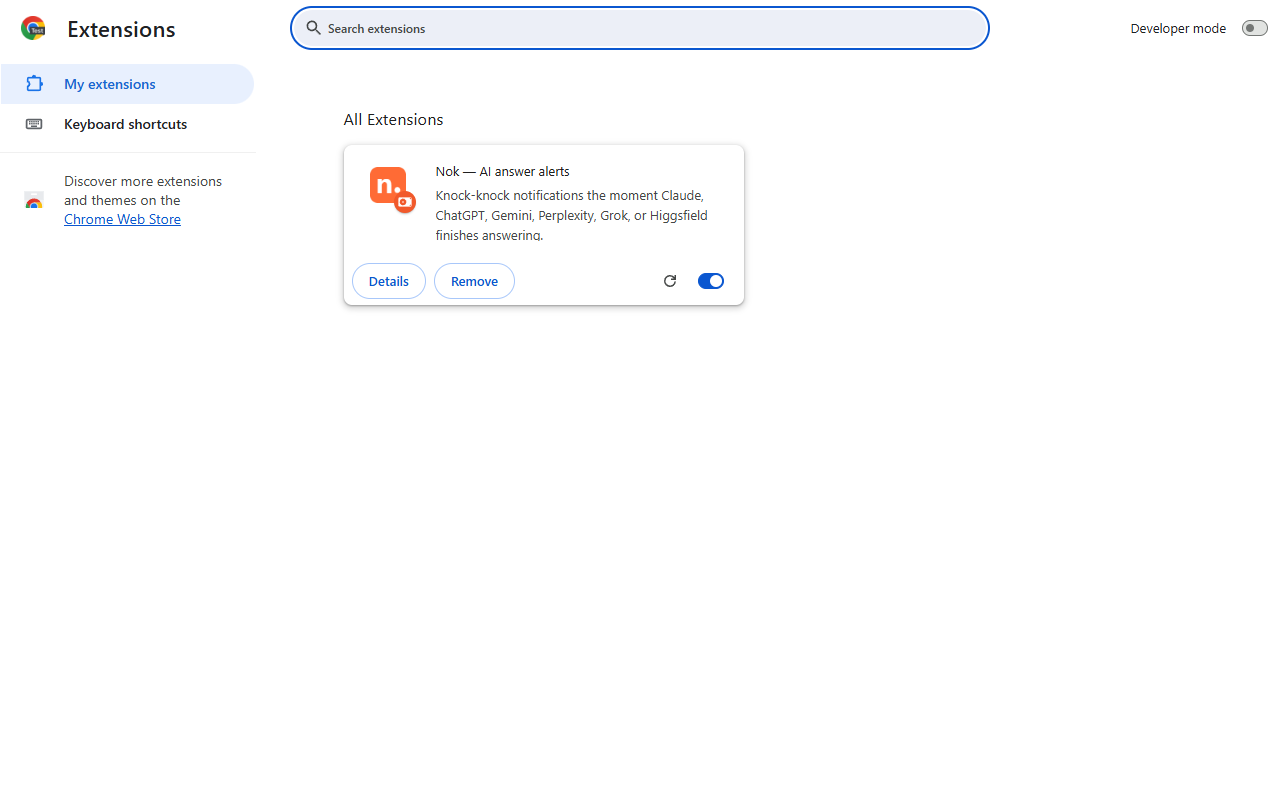
Chrome extensions page (chrome://extensions)
03

Toggle Developer Mode

Top-right corner of that page, there's a switch labeled Developer mode. Flip it on. Three new buttons appear at the top-left: Load unpacked, Pack extension, Update. That's what we want.

Developer mode toggled on, revealing the Load unpacked, Pack extension, and Update buttons
04

Click "Load unpacked" → pick the folder

Click the Load unpacked button. A file picker opens. Select the nok-v1.0.0 folder you unzipped in step 01 (not the .zip itself — the folder it expanded into). Hit Open. The nok. card should appear in your extensions list immediately, with the orange icon and version 1.0.0.
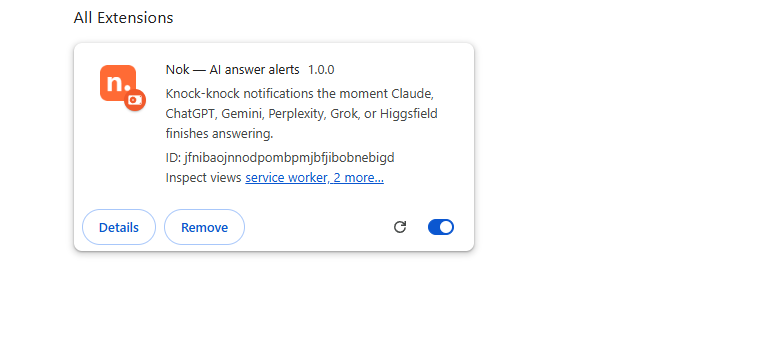
Loaded nok. extension card showing icon, name, version 1.0.0, and extension ID
05

Pin the icon, paste your key, activate Pro

Click the puzzle-piece icon in Chrome's top-right toolbar, find nok. in the list, click the pin to lock it to your toolbar. Then click the nok. icon, tap the orange Unlock Pro features card at the top, and paste the key from your purchase email — it auto-activates. The card disappears, a small outlined PRO badge appears next to the logo, and every Pro feature unlocks instantly.
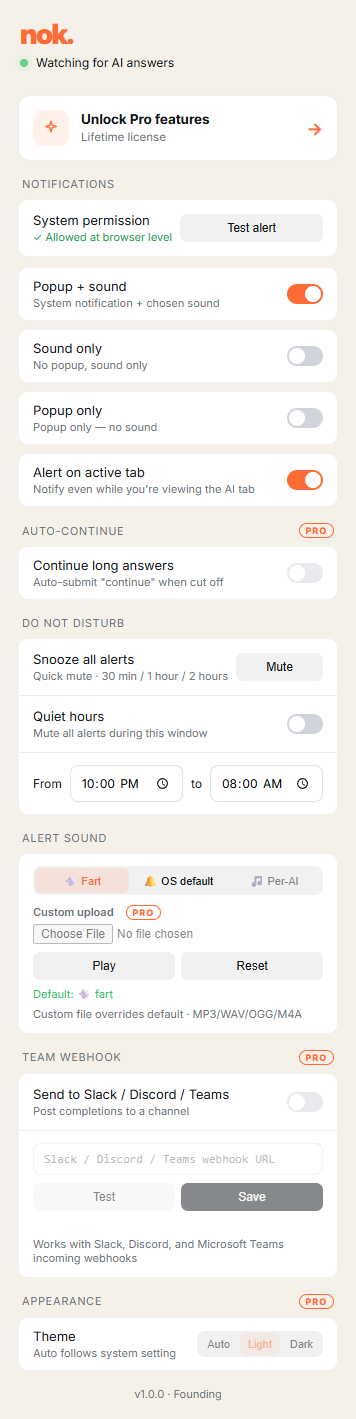
nok. popup showing the Unlock Pro features card
02 · Auto-upgrade on launch day

June 2 · You don't
have to do anything.

On launch day, nok. goes live on the Chrome Web Store. Chrome will quietly upgrade your Developer Mode install to the Web Store version in the background. Same icon. Same popup. Same license key. You'll just stop seeing the "Developer mode" warning banner at the top of chrome://extensions.

We'll send you one short email that day confirming the upgrade worked. After that, the next email is when v1.1 ships — and then silence.

06 · 02 · 2026

Web Store goes live

Chrome upgrades your install in the background. Nothing for you to do.

Same day · evening

Confirmation email

One short message: "You're on the Web Store version now."

When v1.1 ships

One update email

What's new, what to expect. Then silence.

03 · If something breaks

Common
snags.

01 "Load unpacked" button is greyed out / missing

Developer Mode isn't on. Look at the top-right of chrome://extensions and toggle the switch. Refresh the page if needed.

02 Chrome says "Manifest file is missing or unreadable"

You probably selected the .zip file itself instead of the unzipped folder. Right-click the .zip, "Extract all", then point Load unpacked at the resulting folder (it should contain manifest.json at the top level).

03 License key says "Invalid" when I paste it

Make sure you copied the whole key — no leading/trailing spaces, no missing characters. Try copying it fresh from the receipt email. If it still won't activate, email hello@nokalarm.com with your order ID and we'll regenerate.

04 I see a "Developer mode extensions" warning every time I open Chrome

That's normal — Chrome shows this for any extension loaded outside the Web Store. It goes away automatically when nok. moves to the Web Store on June 2 and Chrome auto-upgrades your install. Until then, click the X on the banner to dismiss it for the session.

05 Notifications aren't appearing

On macOS: check System Settings → Notifications → Google Chrome and make sure it's allowed. On Windows: Settings → System → Notifications → Google Chrome. Inside nok.'s popup, you can also click "Send test alert" to verify the OS path works.

06 Refund?

Within 30 days, email hello@nokalarm.com with your order ID. Money back within 24 hours, no ceremony.

Still stuck?

Email me.

One person reads every message. I'll respond within a day, usually within an hour.

hello@nokalarm.com